

การติดตั้ง Compiler C/C++ สำหรับ Window
โปรแกรม Visual Studio Code รองรับโปรแกรมดีบักสำหรับภาษา C/C++ โดยขึ้นอยู่กับระบบปฏิบัติการที่เรากำลังใช้:
- เป็น Linux ใช้ GDB
- เป็น macOS ใช้ LLDB หรือ GDB
- เป็น Window ใช้ Visual Studio Windows Debugger หรือ GDB (จะตั้งติดตั้ง Cygwin หรือ MinGW ก่อน)
การติดตั้ง MinGW
ในบทความนี้เราจะใช้ MinGW ในการติดตั้งลงบนระบบปฏิบัติการ Window ซึ่งเราจะสามารถตั้งค่าให้ VSCode ให้ใช้ GCC C++ compiler (g++) และ GDB debugger เพื่อสร้างโปรแกรมและรันโปรแกรมนั้นบน Window ได้ เราสามารถดูข้อเพิ่มเติมได้จาก mingw-w64 โดยหลังจากตั้งค่าต่าง ๆ แล้วเราจะสามารถคอมไพล์ รัน หรือ ดีบัก โปรแกรมภาษาซีได้
ข้อกำหนดเบื้องต้น
- ติดตั้งโปรแกรม VSCode
- ติดตั้งส่วนเสริม C/C++ extension for VS Code เราสามารถติดตั้ง C/C++ extension โดยค้นหาคำว่า ‘C++’ ในช่องค้นหาใน Extensions view (กดปุ่ม Ctrl+Shift+X เพื่อเปิดหน้า Extensions view)
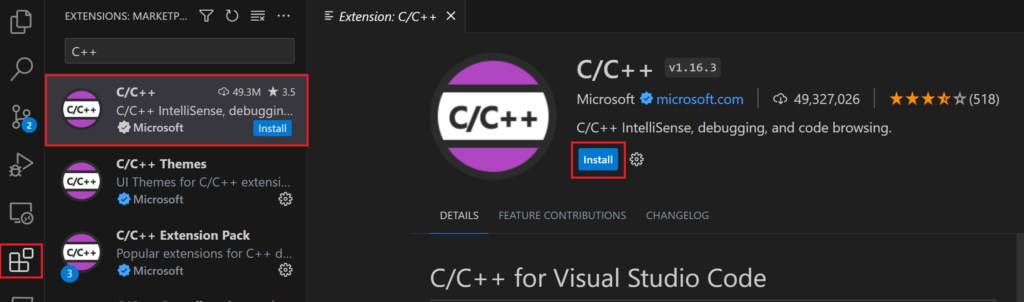
โดยติดตั้งส่วนเสริมดังต่อไปนี้
- C/C++ IntelliSense, debugging, and code browsing
- C/C++ Themes
- C/C++ Extension Pack
การติดตั้งชุดเครื่องมือ MinGW-w64
Get the latest version of MinGW-w64 via MSYS2, which provides up-to-date native builds of GCC, MinGW-w64, and other helpful C++ tools and libraries. This will provide you with the necessary tools to compile your code, debug it, and configure it to work with IntelliSense.
เราสามารถใช้ MinGW-w64 เวอร์ชันล่าสุดผ่าน MSYS2 ซึ่งประกอบไปด้วยเครื่องมือและไลบรารี C++ ต่าง ๆ ที่มีการอัพเดทเป็นประจำทำให้เราได้เวอร์ชันล่าสุดอยู่เสมอ เครื่องมือต่าง ๆ เหล่านี้มีความจำเป็นและใช้ประโยชน์จาก GCC, MinGW-w64 ได้ โดยจะใช้ในการคอมไพล์โค้ด ดีบัก และกำหนดค่าให้ทำงานกับ IntelliSense ที่เป็น Extension ใน VSCode เราสามารถดูวิดิโอการติดตั้งได้จากลิงค์นี้ (Installing MinGW to build C++ Code on Windows)
ขั้นตอนการติดตั้ง MinGW-w64 ผ่าน MSYS2
1. การดาวน์โหลดตัวติดตั้งล่าสุดของ MSYS2 สามารถหาได้จากหน้าเว็บของ MYSYS2 หรือดาวน์โหลดโดยตรงได้จากลิงค์นี้ (จากเว็บ สาขาไอที)
2. รันตัวติดตั้งและทำตามขั้นตอนต่าง ๆ ของติดตั้งโปรแกรม (MYSYS2 สามารถติดตั้งบน Windows เวอร์ชัน 8.1 ขึ้นไปเท่านั้น)
3. ในขั้นตอนการติดตั้งให้เลือกตำแหน่งติดตั้ง เช่น C:\msys64 และเมื่อการติดตั้งเสร็จจะตั้งแน่ใจว่าเราได้รันโปรแกรม “Run MSYS2 now” ซึ่งจะมี checked box แจ้งในขั้นตอนสุดท้ายก่อนกดปุ่ม “Finish” ซึ่งจะเปิดหน้าต่าง MSYS2 Terminal ให้เรา
4. ในหน้าต่าง MSYS2 Terminal เราจะติดตั้ง MinGW-w64 toolchain โดยพิมพ์คำสั่งดังต่อไปนี้
pacman -S --needed base-devel mingw-w64-ucrt-x86_64-toolchain5. ให้ติดตั้งทุก ๆ packages ต่าง ๆ ที่โปรแกรมแนะนำโดยกดปุ่ม “Enter”
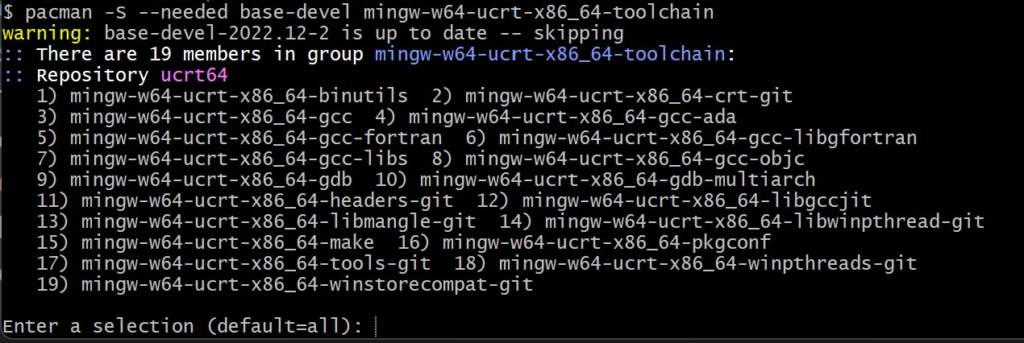
6. กดปุ่ม “Y” เมื่อได้รับแจ้งว่าจะดำเนินการติดตั้งหรือไม่
7. เพิ่มตำแหน่งที่อยู่ของโฟลเดอร์ bin ใน MinGW-w64 ไปยัง environment ของ Windows ในตัวแปรชื่อ PATH ของ Windows โดยใช้ขั้นตอนต่อไปนี้:
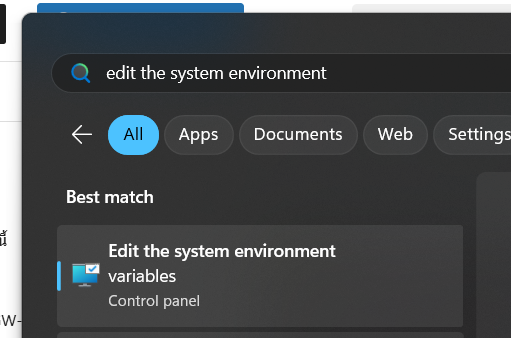
1. ใน Windows search bar พิมพ์คำว่า edit the system environment เพื่อเปิด Edit the system environment variable
1. ในแทป Advance ด้านล่างกดปุ่ม Environment variable…
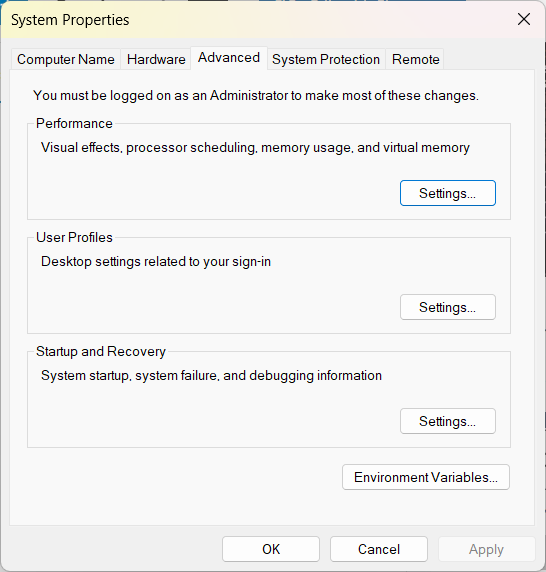
1. ในช่อง User Variables for … เลือกต้วแปรชื่อ Path กดปุ่ม Edit
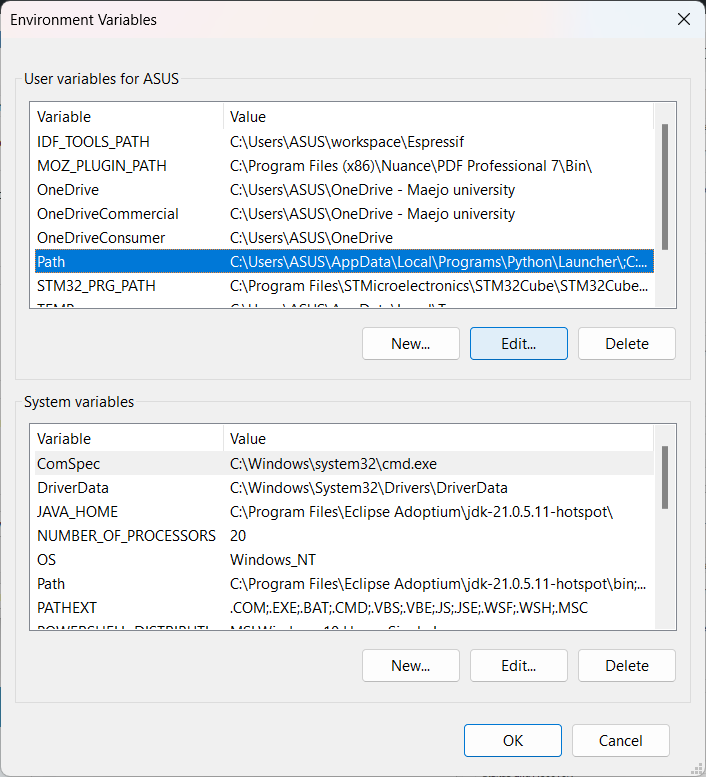
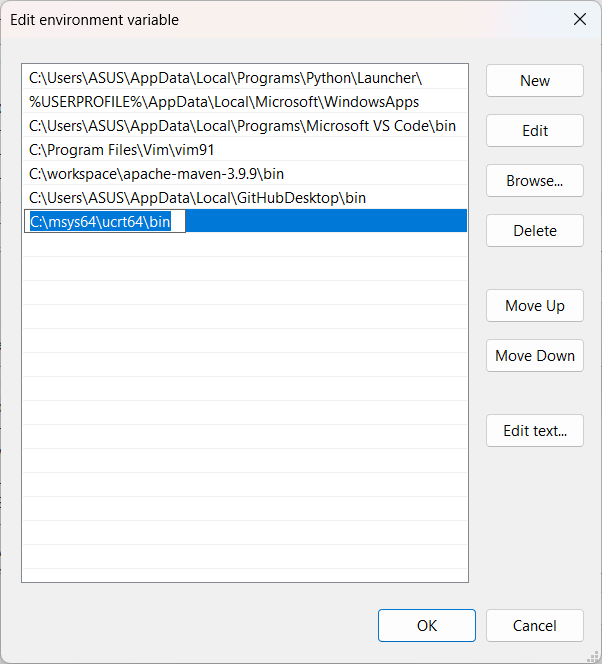
- สเลือก New และเพิ่มโฟลเดอร์ปลายทางของ MinGW-w64 ที่เราติดตั้งไว้ระหว่างกระบวนการติดตั้งลงในรายการ เช่น:
C:\msys64\ucrt64\binจากนั้นกดปุ่ม OK
ตรวจสอบการติดตั้ง MinGW
ในการตรวจสอบว่าเครื่องมือ MinGW-w64 ของเราได้รับการติดตั้งและพร้อมใช้งานอย่างถูกต้องหรือไม่ ให้เปิดพรอมต์คำสั่งใหม่และพิมพ์:
gcc --version
g++ --version
gdb --version
เราควรเห็นผลลัพธ์ที่ระบุว่าเราได้ติดตั้ง GCC, g++ และ GDB เวอร์ชันใด หากข้อมูลถูกต้อง:
สร้าง Hello World โปรแกรม
ขั้นตอนแรกสร้าง C/C++ โปรเจ็คก่อน
เปิดใช้ Terminal เพื่อรันคำสั่งของ Windows (พิมพ์ข้อความ cmd ในแถบค้นหาของ Windows)
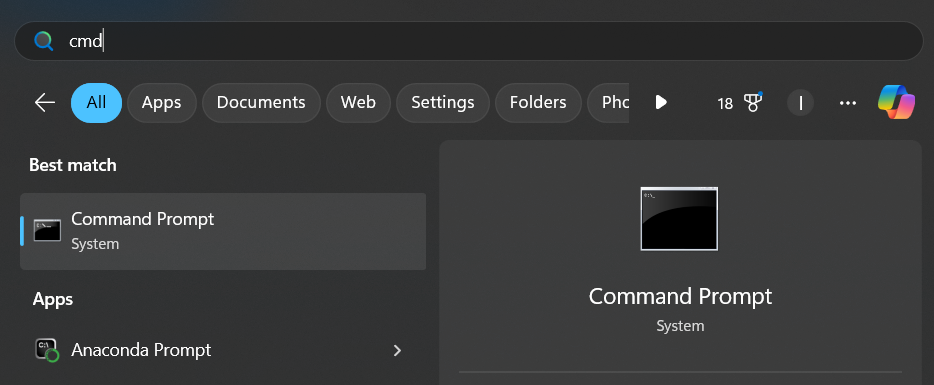
รันคำสั่งต่อไปนี้ เพื่อสร้างโฟลเดอร์ว่างชื่อ projects ซึ่งเราสามารถเก็บ C/C++ โปรเจ็กต์ของเราได้ คำสั่งต่อไปนี้จะสร้างและย้ายไปยังโฟลเดอร์ย่อยชื่อ helloworld และจะเปิด helloworld โดยตรงใน VS Code (อาจใช้โปรแกรม Window Explorer สร้างและเปิด VSCode ไปยังโฟลเดอร์นั้นได้เป็นอีกวิธีหนึ่ง)
mkdir projects
cd projects
mkdir helloworld
cd helloworld
code .
หากปรากฎหน้าต่าง “Do you trust the authors …” ให้เช็ค Trust the … และกดปุ่ม Yes …

เพิ่มไฟล์โค้ดต้นฉบับ Hello World
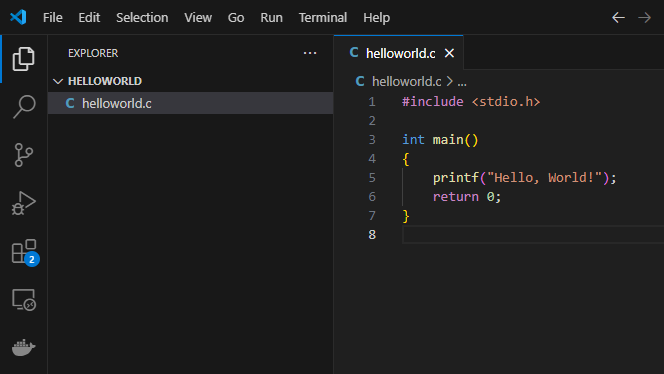
ในแถบชื่อ File Explorer ให้เลือกปุ่มไฟล์ใหม่ และตั้งชื่อไฟล์ว่า helloworld.c
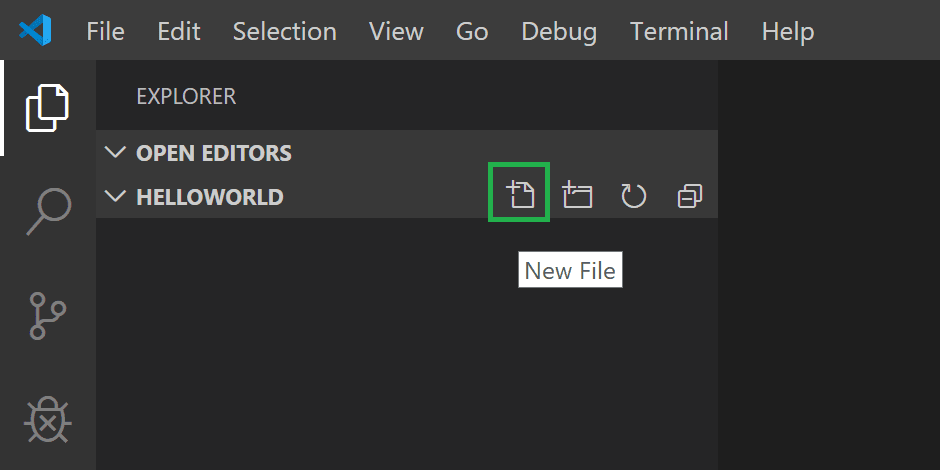
เพิ่มโค้ดต้นฉบับ Hello World
#include <stdio.h>

int main()
{
    printf("Hello, World!");
    return 0;
}
ตอนนี้กด Ctrl+S เพื่อบันทึกไฟล์ สังเกตว่าไฟล์ที่เราเพิ่งเพิ่มเข้าไปนั้นปรากฏในมุมมอง File Explorer (Ctrl+Shift+E) ในแถบด้านข้างของ VS Code:
รัน helloworld.cpp
ส่วนขยาย C++ จะใช้คอมไพเลอร์ C++ ที่เราติดตั้งไว้ในเครื่องของเราเพื่อสร้างโปรแกรม หากว่าเราได้ดำเนินการตามขั้นตอน “การติดตั้งชุดเครื่องมือ MinGW-w64” เสร็จเรียบร้อยอยากถูกต้องก่อนพยายามเรียกใช้และแก้ไขไฟล์ helloworld.c ใน VS Code
1. เปิด helloworld.c เพื่อให้เป็นไฟล์ที่ใช้งานอยู่
2. กดปุ่ม play ที่มุมขวาบนของตัวแก้ไข
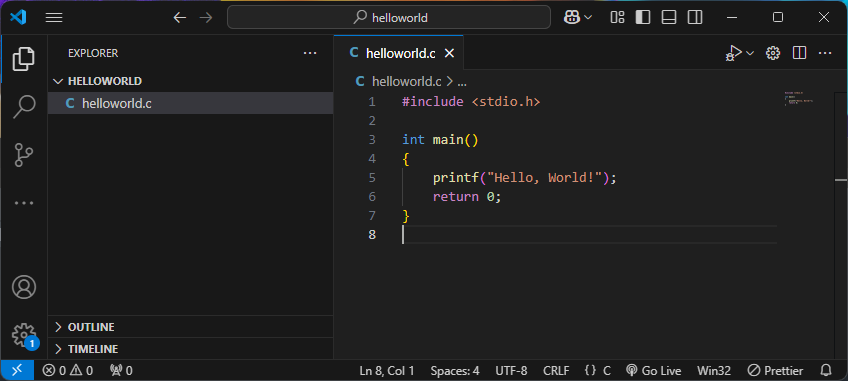
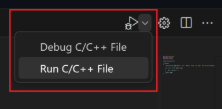
3. เลือก C/C++: g++.exe build and debug active file จากรายการ list of detected compilers on your system.
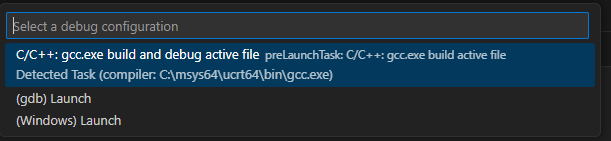
เราจะถูกขอให้เลือกคอมไพเลอร์เฉพาะในครั้งแรกที่เราเรียกใช้ helloworld.c เท่านั้น คอมไพเลอร์นี้จะถูกตั้งค่าเป็นคอมไพเลอร์ “default” ในไฟล์ task.json
หลังจาก build succeeds แล้วเอาต์พุตของโปรแกรมของคุณจะปรากฏใน Terminal
ข้อมูลเพิ่มเติมในการติดตั้งสามารถเข้าไปดูได้ใน Using GCC with MinGW